



How to create a design system in Figma
From an empty Figma file to colors, type, tokens, themes, components, brand guidelines and code, in about ten minutes with UIX Design System Generator, free to start.
Install UIX Design System Generator and open it
Install UIX Design System Generator from Figma Community, then open it from the Plugins menu in any Figma file. It works in your existing files, and nothing changes until you press Sync to Figma.
 UIX : Design System Generator×
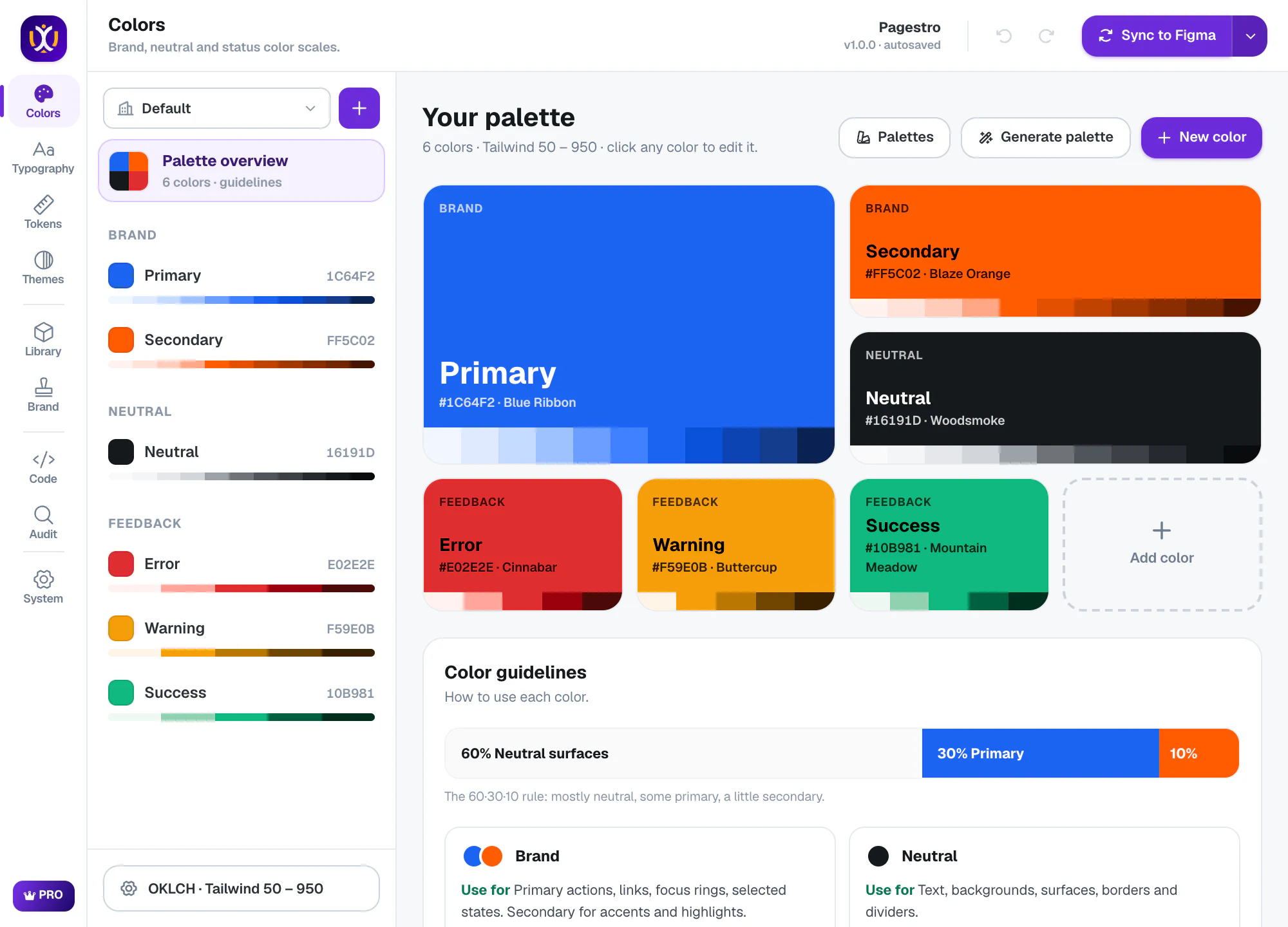
Set your brand colors
In Colors, enter your brand color, or press Palettes to start from one of 34 famous palettes. Not sure yet? Generate palette builds one for you, and New color adds your own. UIX makes 11-shade OKLCH scales for brand, neutral and feedback colors and checks contrast on every shade.
UIX : Design System Generator×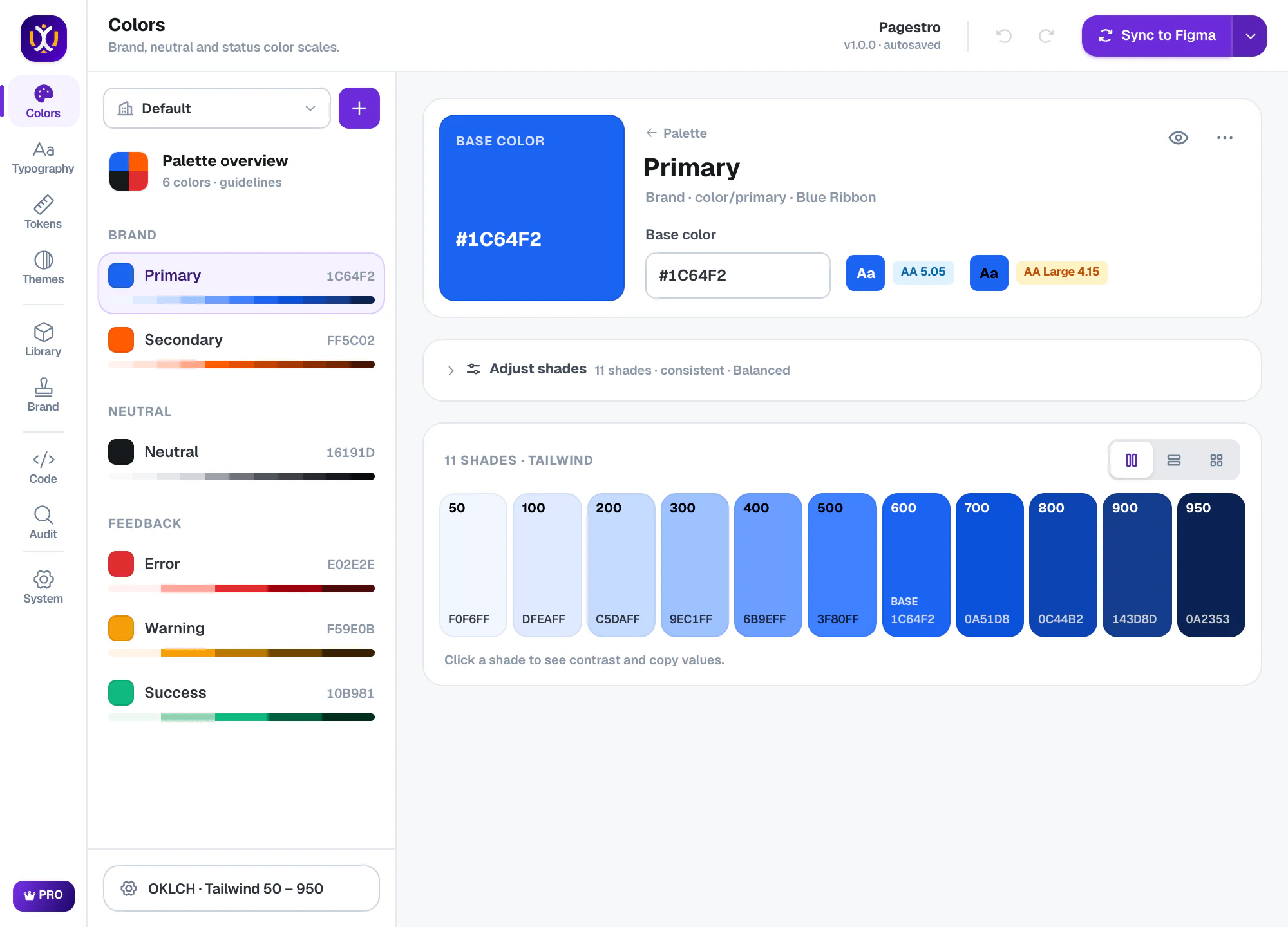
Choose your typography
In Typography, pick a font pairing (there are 50) and a type scale. Every style from Display to Caption is calculated. Free gives you the full scale; Pro adds separate Tablet and Mobile text styles.
UIX : Design System Generator×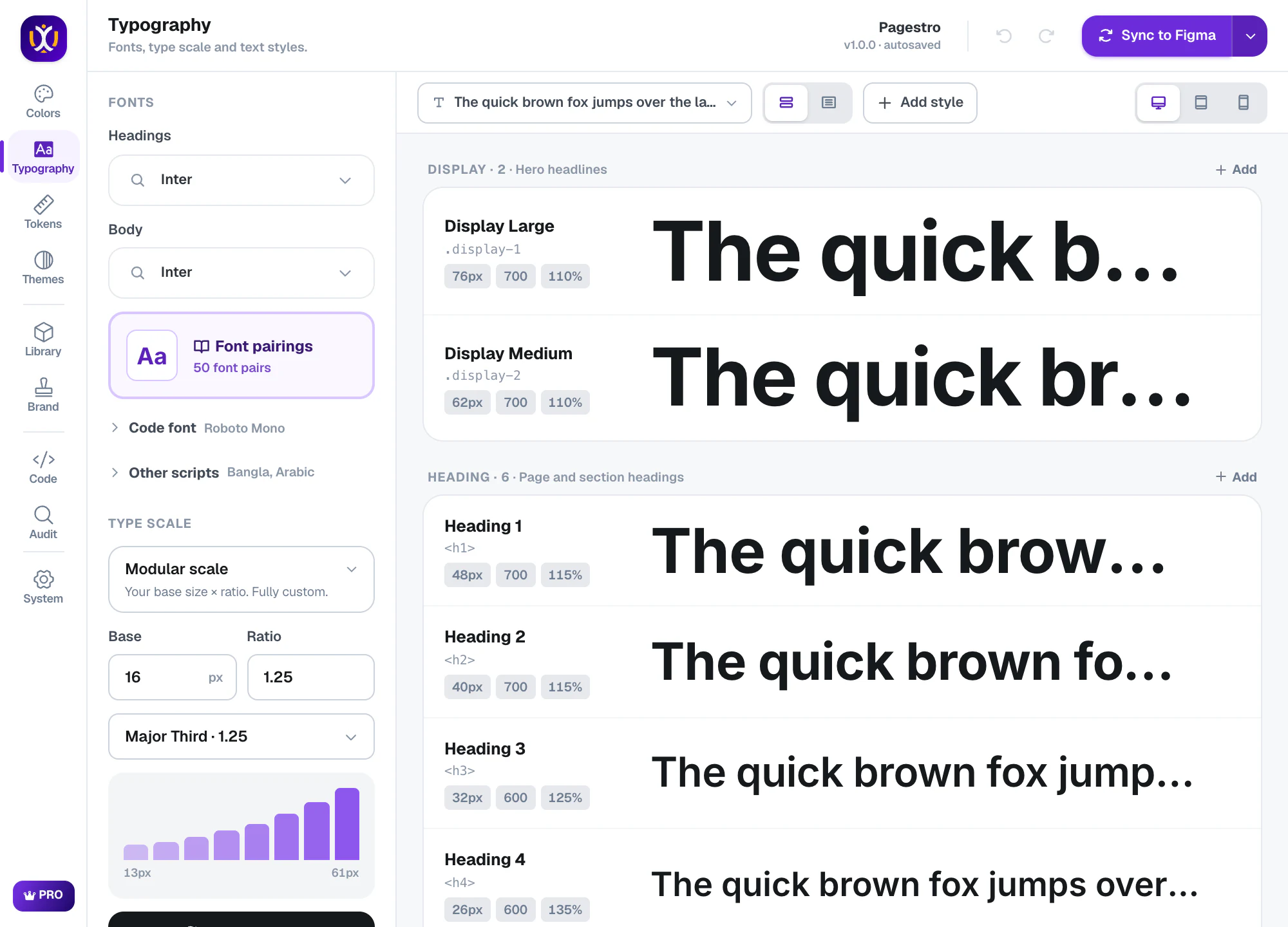
Set up your tokens
In Tokens, look over spacing, sizing, radius, borders, opacity, shadows, glass, motion and z-index. The defaults follow common practice, so change only what you want to. Every token type is free.
UIX : Design System Generator×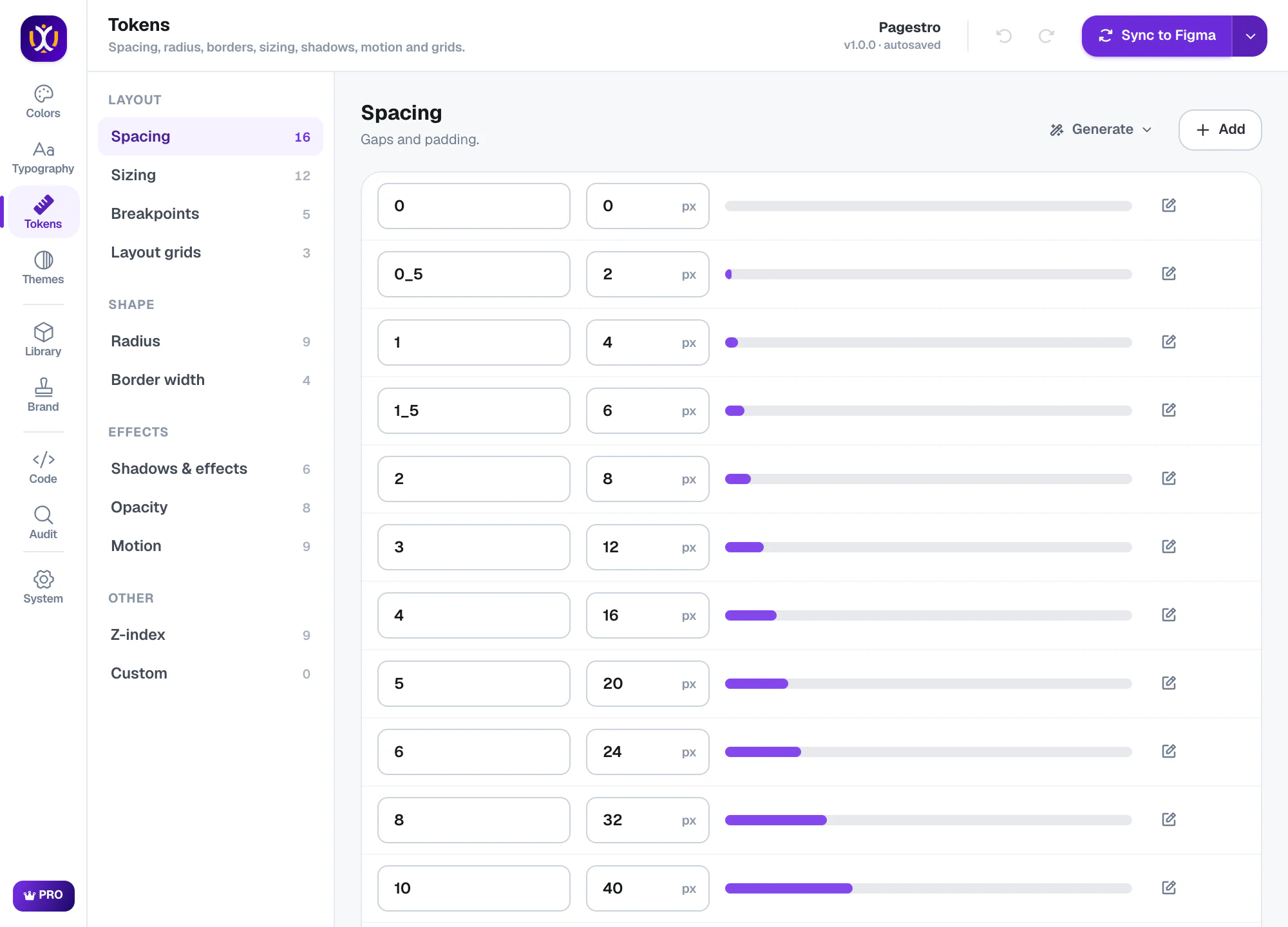
Create light and dark themes
In Themes, semantic tokens (bg, text, border, icon) point at your palette. Free includes the light theme. Pro adds dark, high-contrast and multi-brand themes. Check contrast, and fix failing pairs in one click.
UIX : Design System Generator×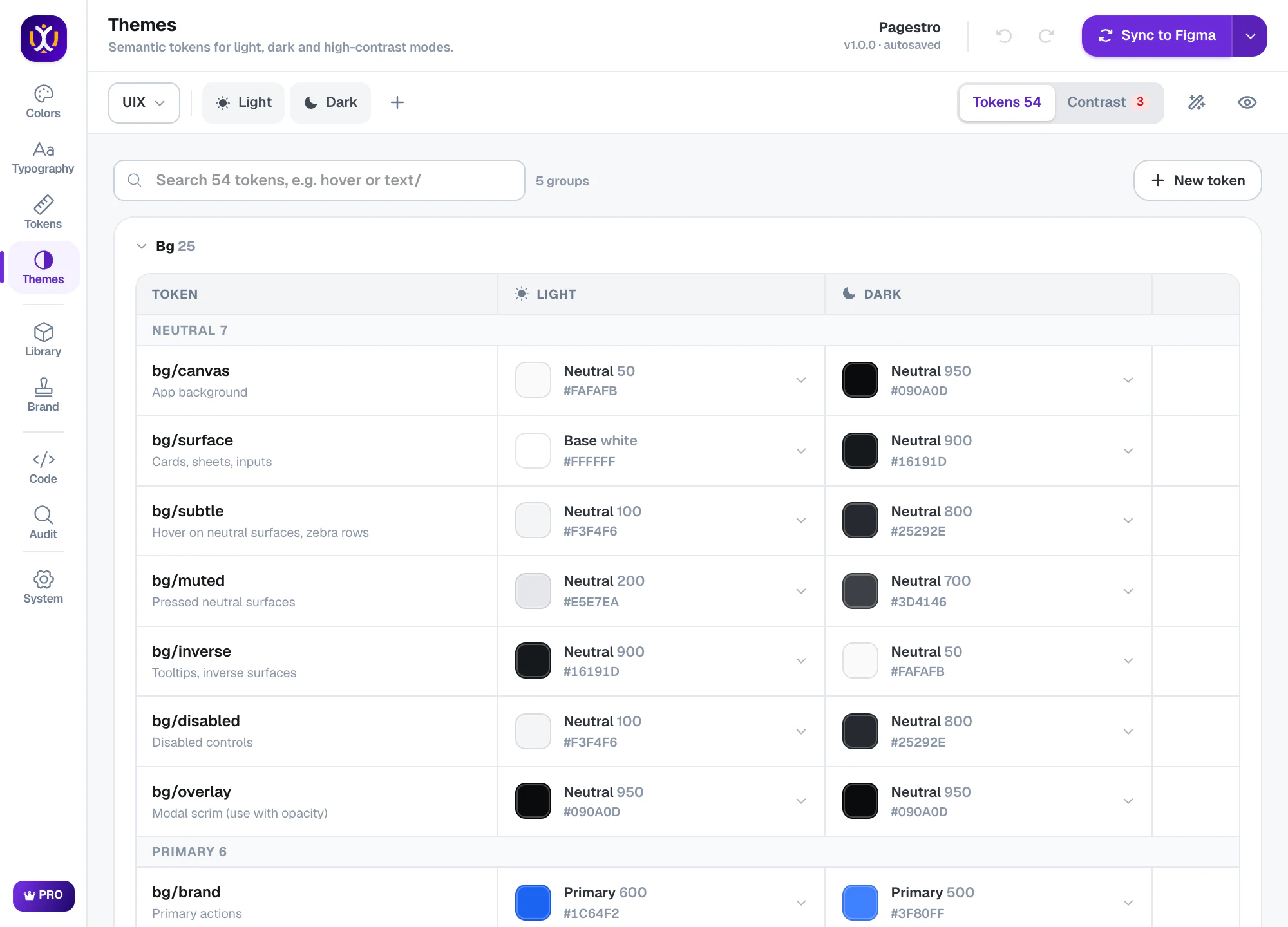
Preview the changes
Open the Sync to Figma menu and choose Preview changes. UIX compares itself with your file and shows what is new, changed and unchanged, before anything is created.
UIX : Design System Generator×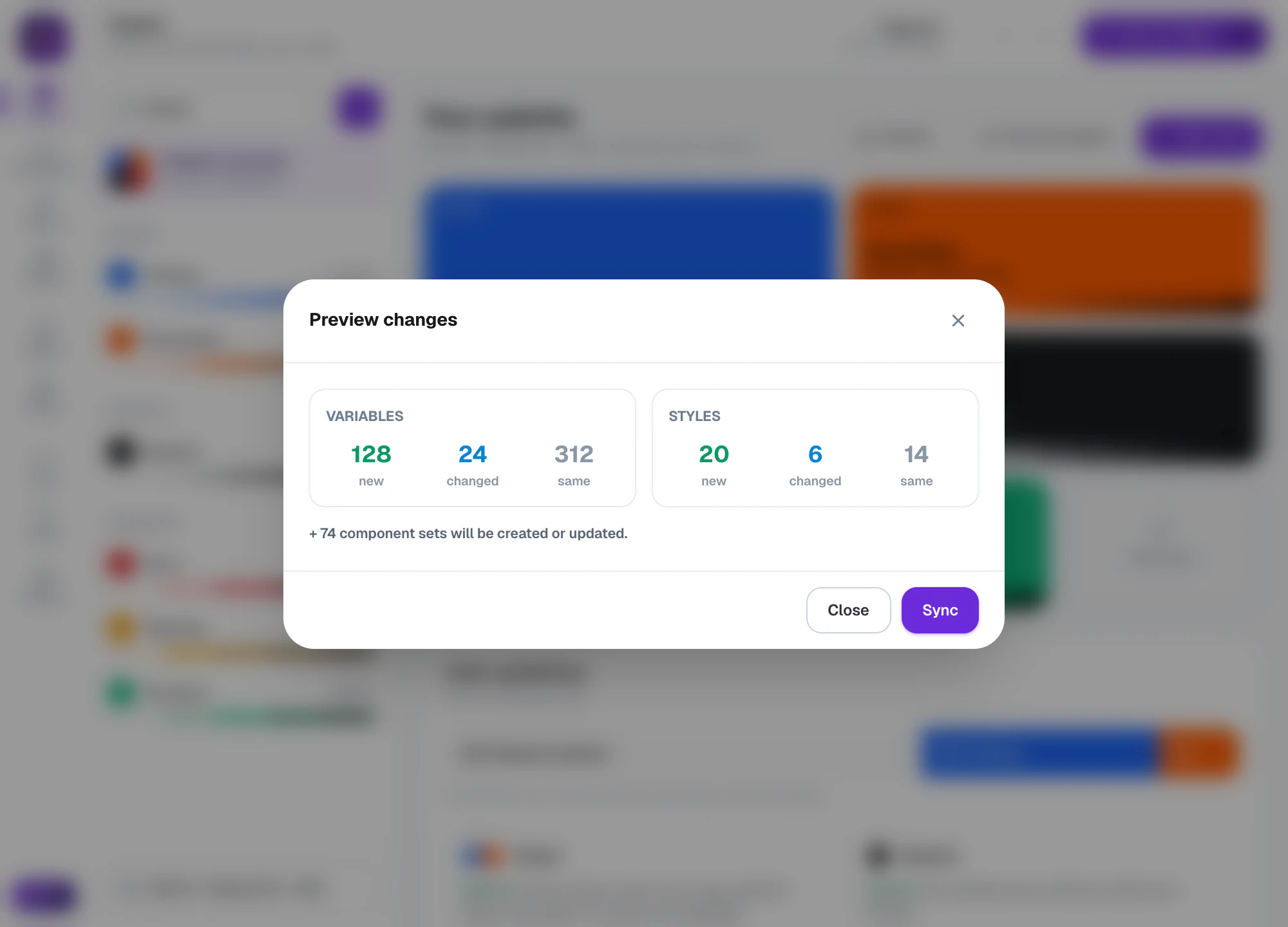
Sync to Figma
Press Sync to Figma. UIX creates the variables, text and effect styles, themes and a documentation page in your file. Want it in smaller steps? Use the menu to sync only colors, typography, tokens, theme or components.
UIX : Design System Generator×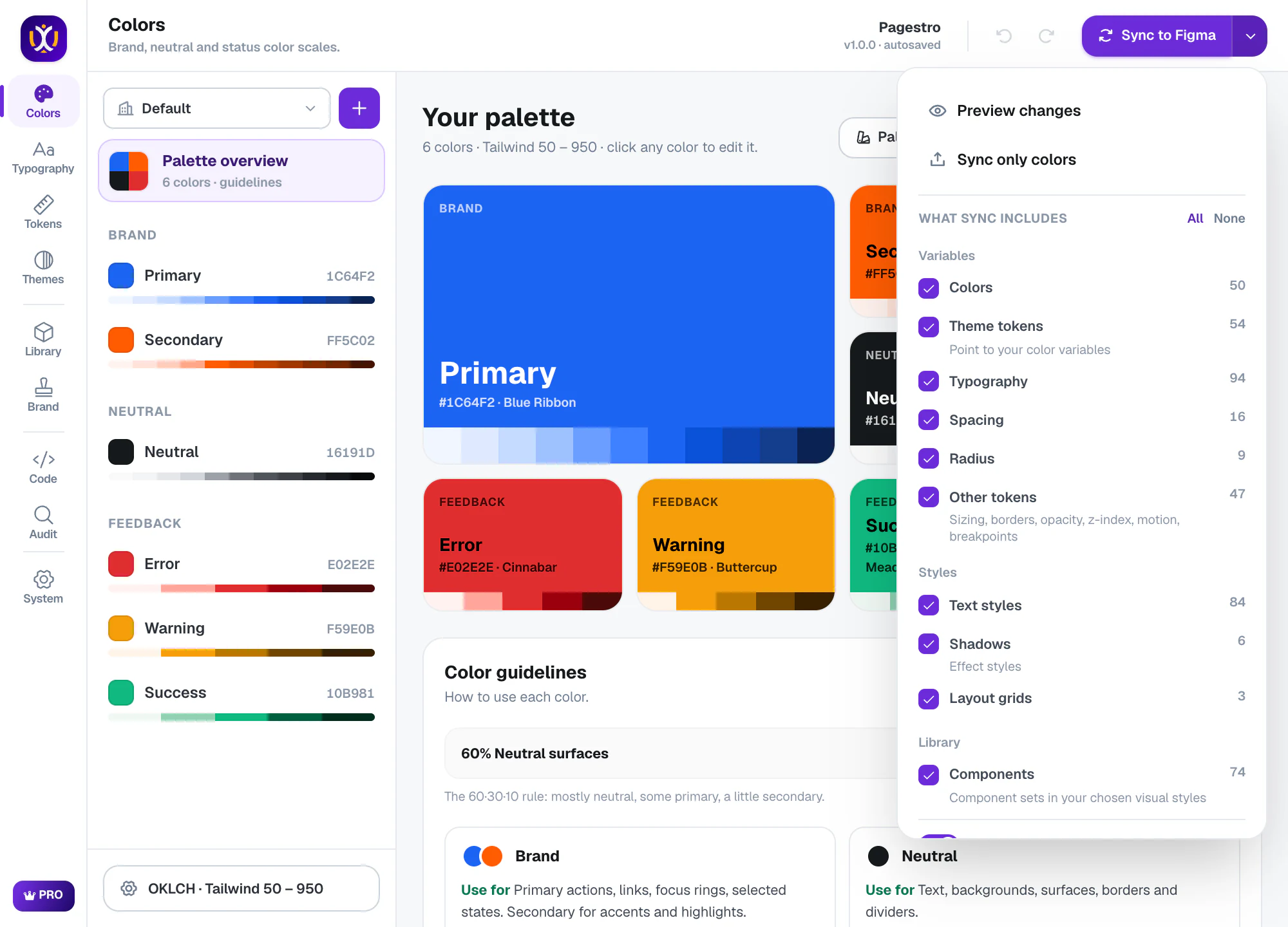
Create components
In Library, pick your components and a visual style, then press Create components. Free covers 12 core components in the Modern style. Pro has all 74 in 10 styles. Each one comes in Sharp, Rounded or Pill, and is a real component set bound to your tokens. Big libraries build in parts, so Figma stays fast.
UIX : Design System Generator×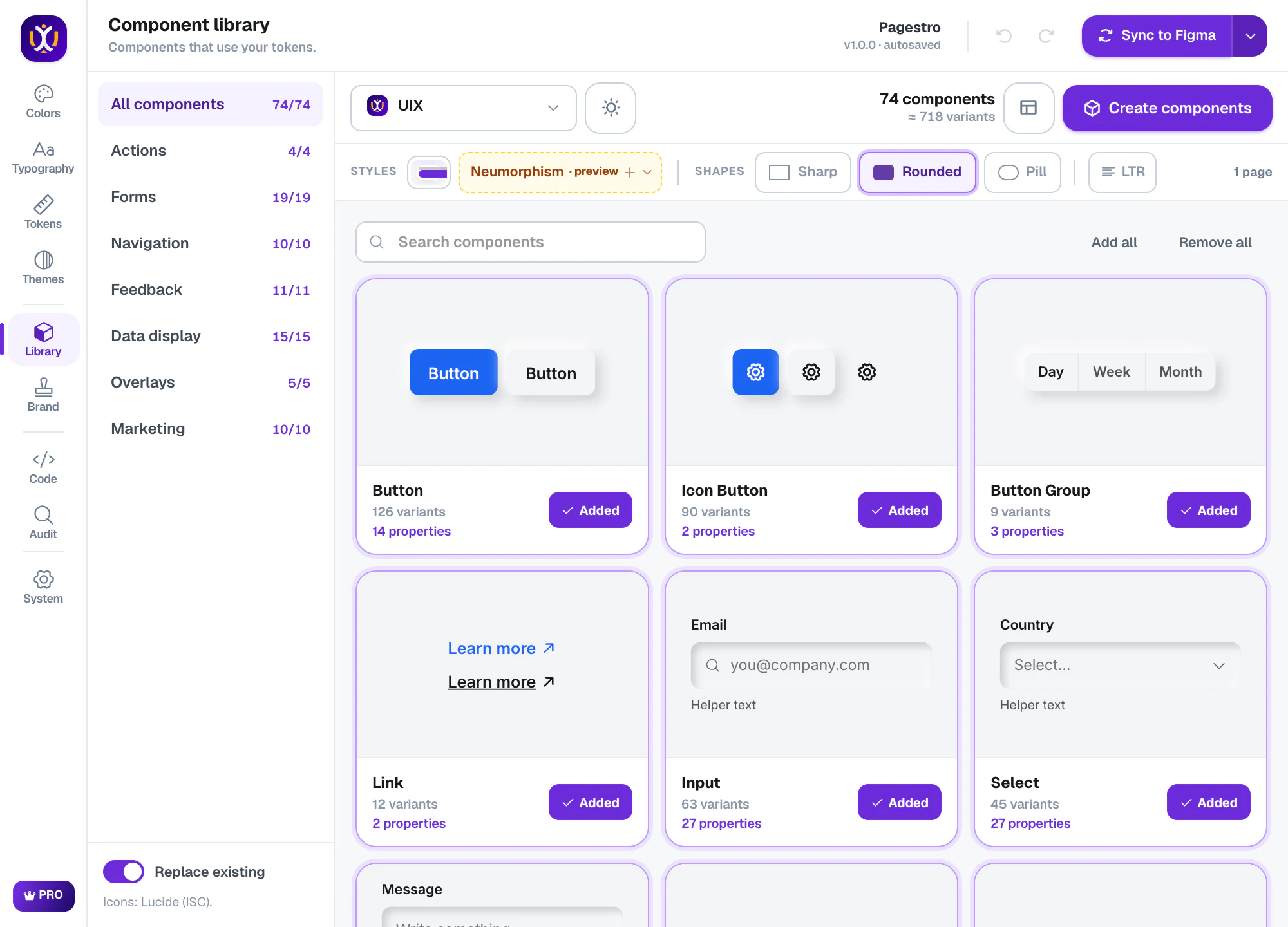
Add brand guidelines
In Brand, preview all 5 guideline styles (Bold, Corporate, Swiss, Glow and Bento) with your real colors, fonts and logo. Then press Add to Figma. Free adds Bold or Corporate. Pro adds all 5 styles, all 14 applications and PDF, PNG and HTML export.
UIX : Design System Generator×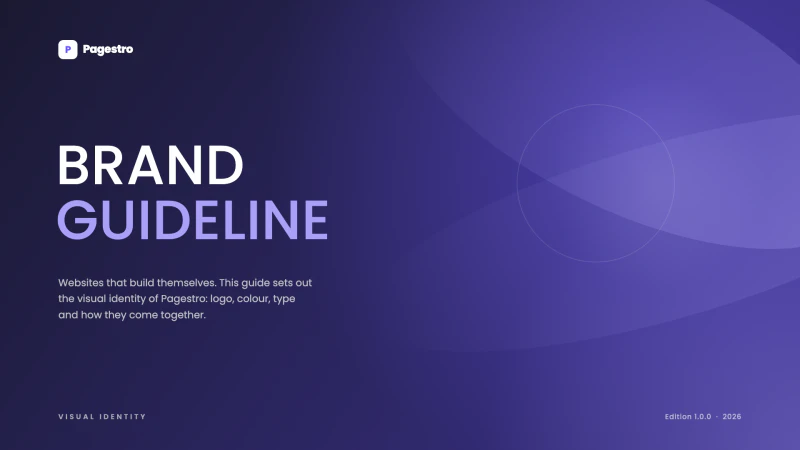
Export code and the AI Pack
In Code, export CSS, Tailwind v4, W3C DTCG tokens and the AI Pack for free. The AI Pack gives Claude Code, Cursor and v0 files like AGENTS.md and llms.txt, so they follow your system. Pro adds the other formats (21 in all), including React, an MCP server and SwiftUI, plus GitHub sync.
UIX : Design System Generator×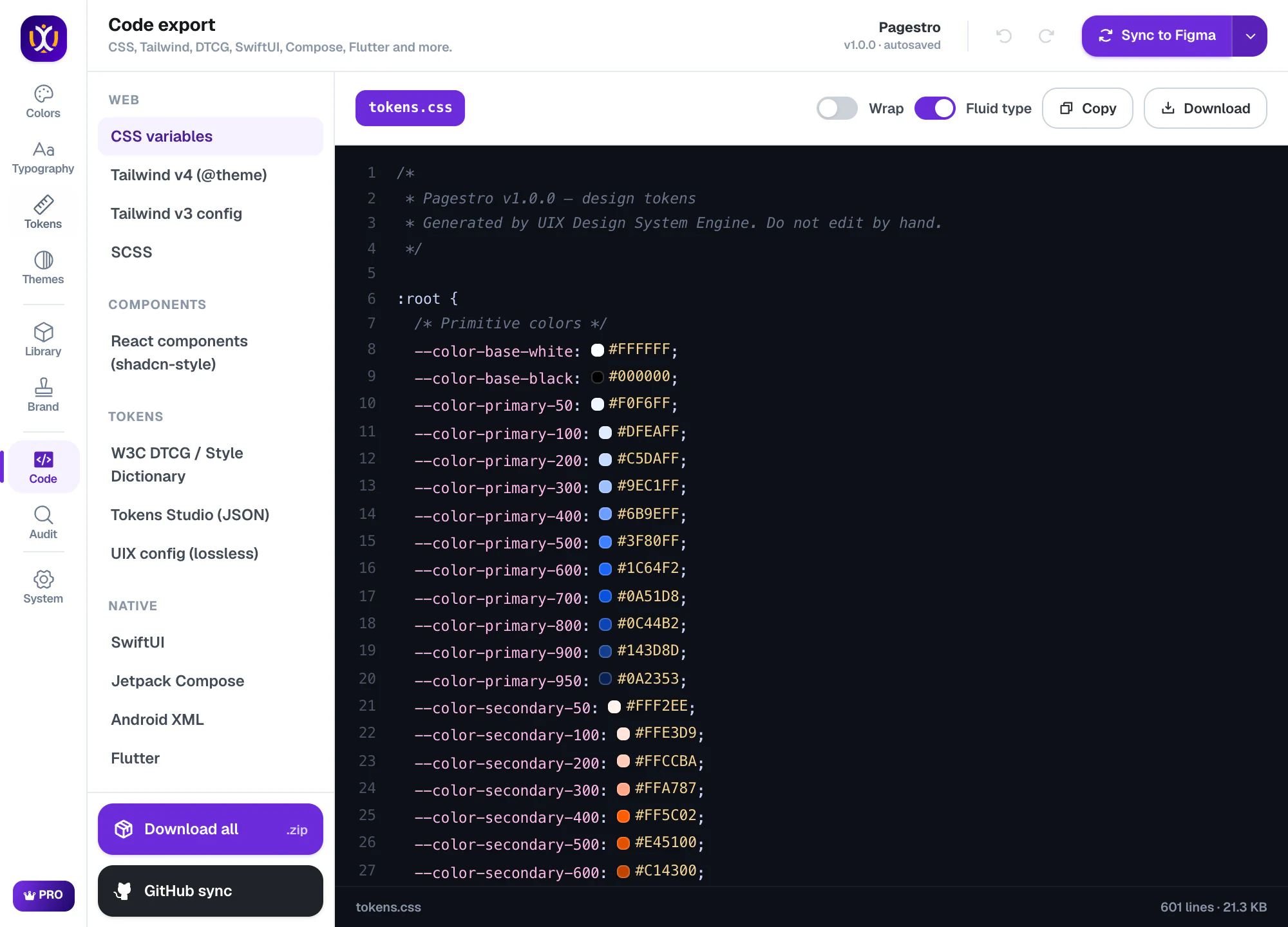
Scan your file in Audit
In Audit, press Scan page (or Scan selection) to get a health score, find hard-coded colors and check accessibility. Free fixes 3 issues per scan. Pro fixes everything in one click, and can turn repeated layers into components.
UIX : Design System Generator×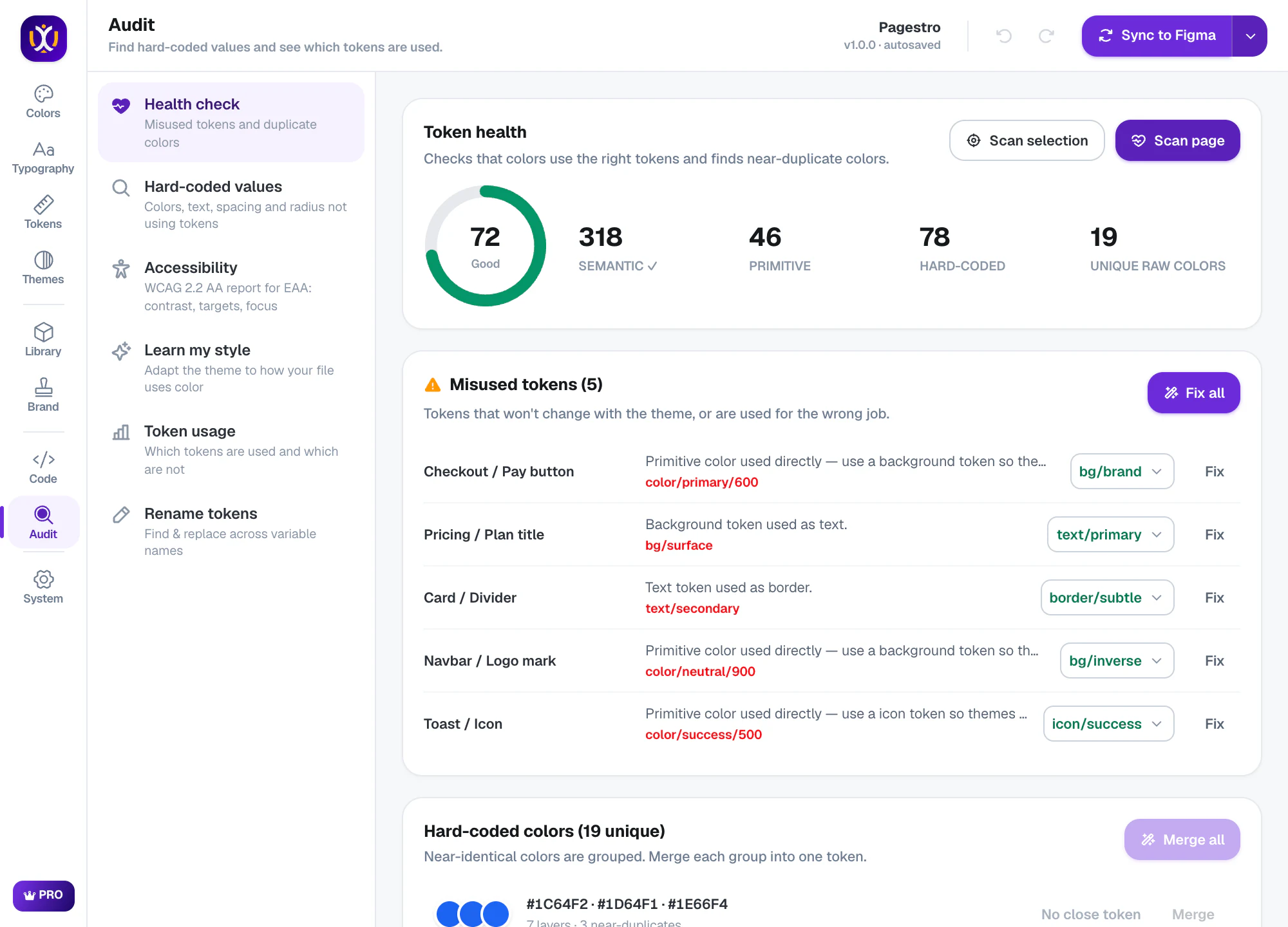
FAQ
Questions, answered
What should a Figma design system include?
At minimum: color scales, semantic color tokens for light and dark, a type scale with text styles, spacing and radius tokens, effects, and core components, all as variables and styles so designs and code stay in sync.
How long does it take?
With UIX, plan on about ten minutes for a first version you can use, including brand guidelines and code. The sync itself takes about three minutes. Doing the same by hand usually takes days.
Is it free?
Yes. Free gives you a working version of every tool: OKLCH colors and palettes, type, every token type, a light theme, 12 core components, Bold or Corporate brand guidelines, 6 social posts per run, CSS, Tailwind v4, W3C DTCG and AI Pack code, and 3 audit fixes per scan. Pro adds dark and multi-brand themes, all 74 components in 10 styles, every guideline style, all 21 code formats and unlimited fixes. It starts with a 7-day free trial, then a monthly or yearly plan: see pricing.
Can AI tools use my design system?
Yes. The AI Pack adds AGENTS.md, CLAUDE.md, DESIGN.md, llms.txt and components.json, so Claude Code, Cursor and v0 know your tokens and components. Pro also exports a small MCP server, so your AI can look up tokens and components instead of guessing.
Build your design system today.
Free to start in any Figma file, and Pro is free for 7 days. Your first system can be in your file before your coffee cools.